
TABLE OF CONTENTS
Walkthrough

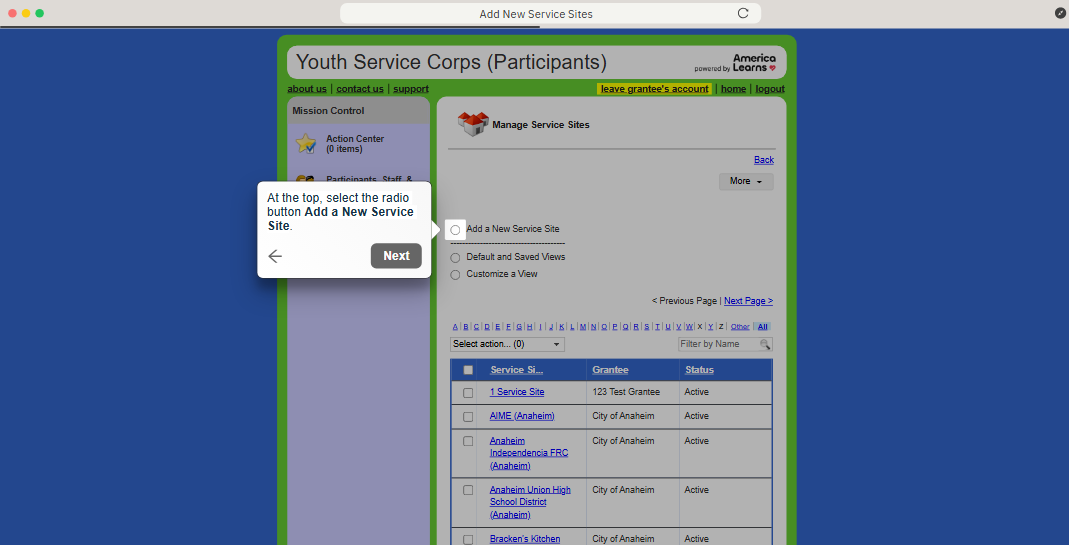
Add New Service Sites
Here you'll learn how to create new service sites.
Begin by logging into the Youth Service Corps (Participants) Impact Suite.
- On the left, in your Mission Control, click Participants, Staff, & Service Sites.
- On the right, under Manage Service Sites & Grantees, select Manage service sites & grantees.
- At the top, select the radio button Add a New Service Site and find your Grantee from the drop-down menu.
- CRITICALLY IMPORTANT: Type the name of the service (use the organization's specific full name + the abbreviation for your Grantee - see list below).

- Click Add.
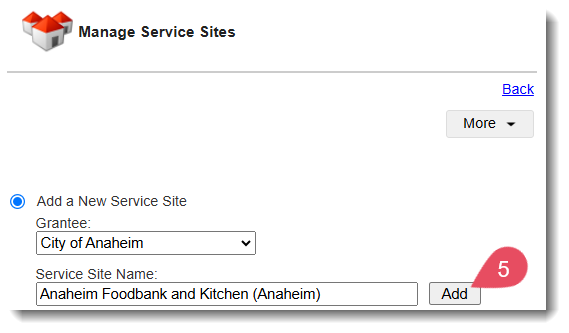
- Repeat for each new Service Site.
Grantee Abbreviations List Link
For a complete and up-to-date list of Grantee Abbreviations to use when creating your Service Sites, check out this document.
Was this article helpful?
That’s Great!
Thank you for your feedback
Sorry! We couldn't be helpful
Thank you for your feedback
Feedback sent
We appreciate your effort and will try to fix the article