
TABLE OF CONTENTS
- Financial Monitoring: Automatic Variance Tracking
- How to Activate Budget Variances (Overspending)
- How Budget Variance Tracking Works for Programs
- Approving Expense Reports
- Your Program Year Dashboard
- All Exportable Reports Now Have Budget Variance Metrics
Financial Monitoring: Automatic Variance Tracking
It’s time to say “so long” to the days of manually tracking where you are with budget variance allowances!
You can now allow for automatic budget variance tracking within your portfolio, tracking hose variances by program and by federal prime code! By default, variances aren’t allowed, so you’ll need to activate the feature if programs are allowed to overspend without submitting budget modifications.
How to Activate Budget Variances (Overspending)
- Go to your Program Year management page.
- Scroll to the section, Budget Variance Rules for Expense Reports.
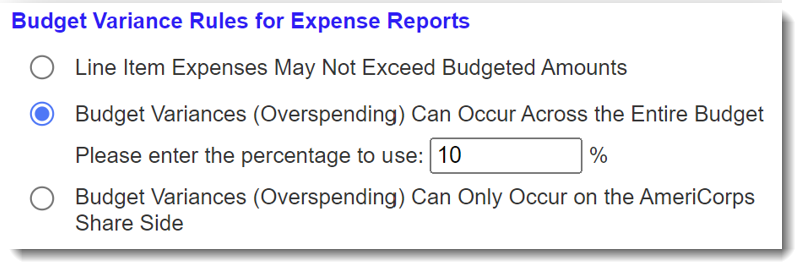
Explanation of options:
- Line Item Expenses May Not Exceed Budgeted Amounts
Subgrantees will need to submit a budget modification request whenever they need to spend any amount of money beyond the budgeted amount for a given line item. - Budget Variances (Overspending) Can Occur Across the Entire Budget
Subgrantees can enter expenses beyond what was budgeted, up to a specific percentage of the total budget that you'll set. - Budget Variances (Overspending) Can Only Occur on the AmeriCorps Share Side
Subgrantees can enter expenses beyond what was budgeted, up to a specific percentage of the AmeriCorps Share budget that you'll set.
How Budget Variance Tracking Works for Programs
Here is how it works:
- Metrics Dashboard
The bottom of the dashboard informs them of their variance percentage and whether they currently are based on all already-approved expense reports.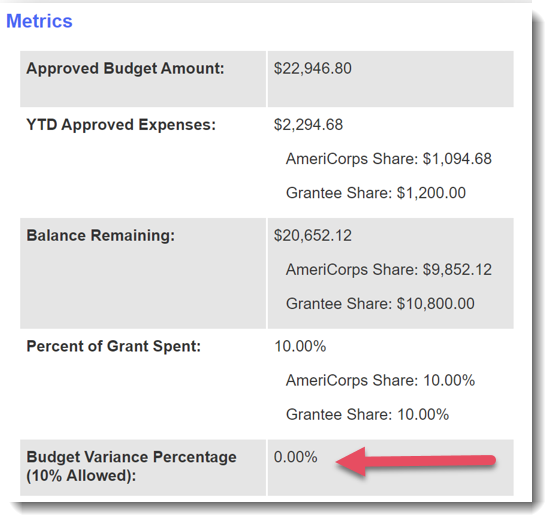
- Expense Reports
At the top of expense report submission forms, programs will see the same metric that’s on their dashboard.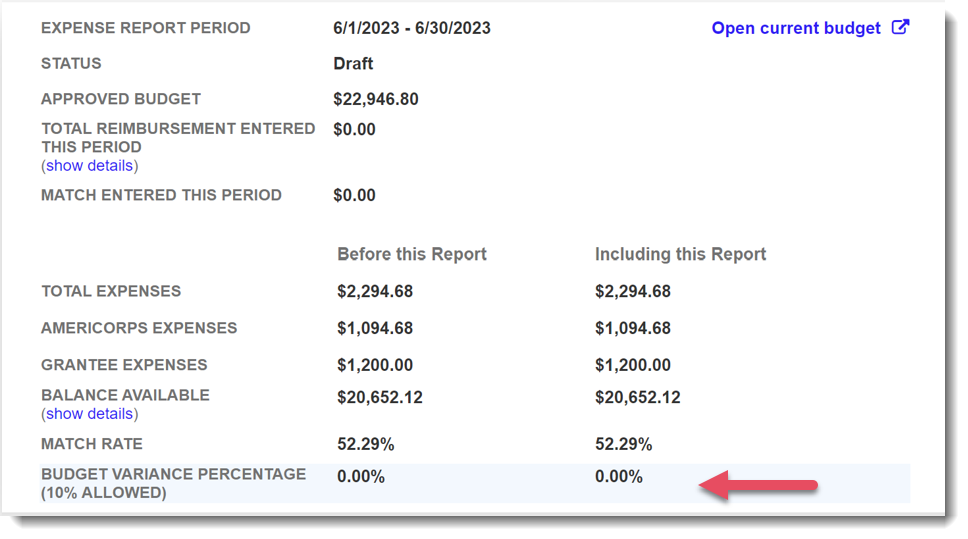
When programs enter expenses that exceed funds remaining for any one line item, they’ll see a negative total for that line item.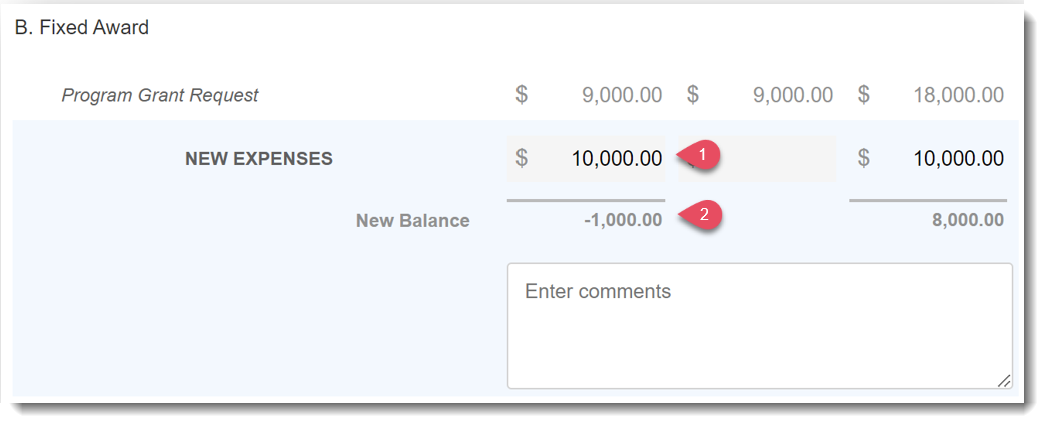
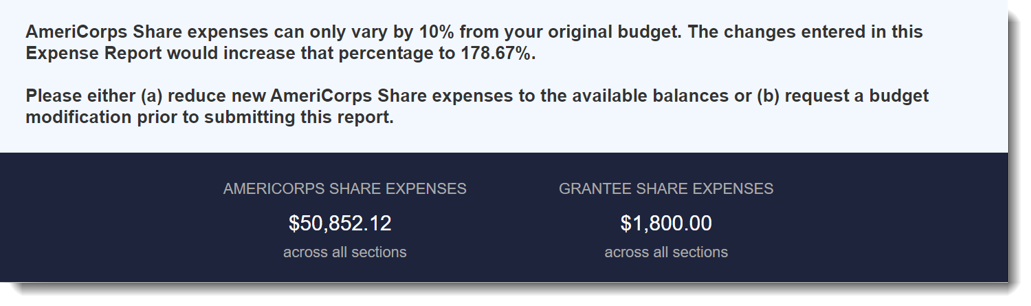
IMPORTANT: If the number entered exceeds the total annual allowable variance cap, programs will see a message towards the bottom of the screen informing them what they need to do to progress through the report.
In the following example, the commission has activated budget variance only on the AmeriCorps Share side.
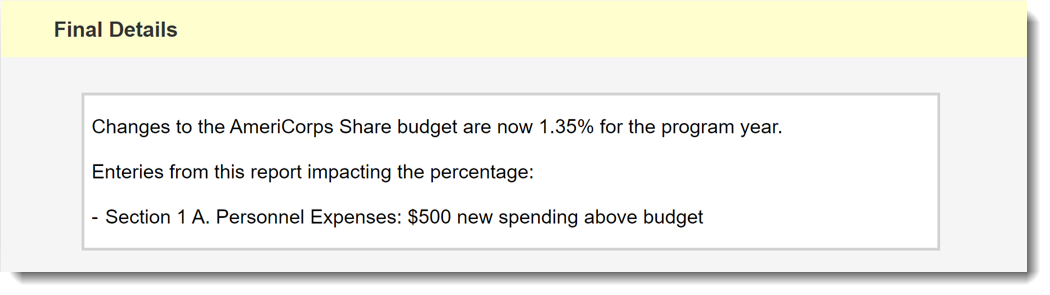
In the Final Details section of the report, programs will see what their total variance amount will be for the year once the report is approved. They’ll also see a list of line items in the current report impacting this percentage.
Approving Expense Reports
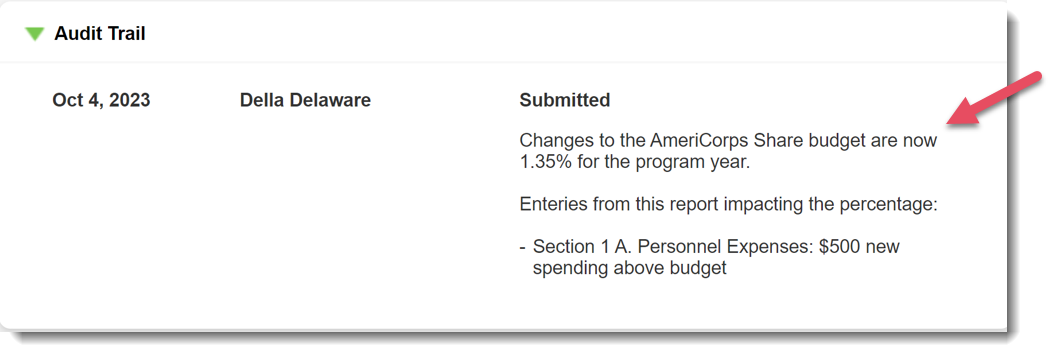
When approving expense reports, details about an overage will appear on the right side of the audit trail, as shown below.
Your Program Year Dashboard
Open any panel in the Program Year Dashboard to see where any one or group of subgrantees is in terms of the variance cap. You can even do so by federal prime code (see screenshot below)!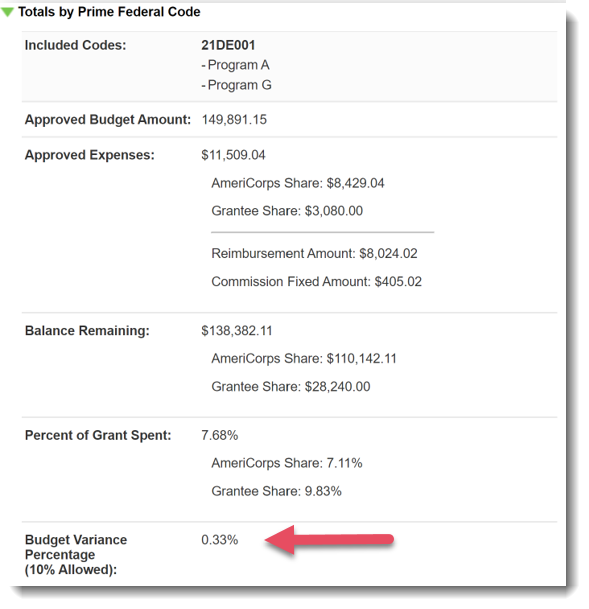
All Exportable Reports Now Have Budget Variance Metrics
If you need to export budget variance metrics for any one program, group of programs, or by prime code (even across program years), run any of the three exports, and you’ll see that info!
Was this article helpful?
That’s Great!
Thank you for your feedback
Sorry! We couldn't be helpful
Thank you for your feedback
Feedback sent
We appreciate your effort and will try to fix the article