
Getting Emails when Reporters Submit Surveys
Take a look at this quick review video:
For all other admins and supervisors, you'll need to update the permission in their admin role:
On the left, in your Mission Control, click the Reporters, Admins, & Sites.
On the right, click Manage admin roles.
Click on the role you would like to update.
Find the section called Survey Management & Data Access and check this permission (and the scope of receipt appropriate for the role - all sites or just assigned sites):
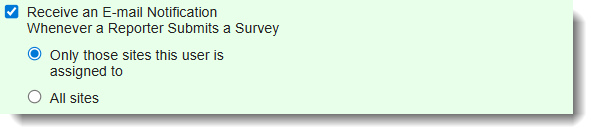
Scroll to the bottom of the page and click Update.
For managers (main administrators):
- Follow these steps to update the automated survey submission email to send to your manager (main administrator).
- On the left, in your Mission Control, click Communications Portal.
- On the right, use the More drop-down menu and select Customize Messaging.
- Find the message in the Survey panel and click to open the Survey Submissions Notification to Admins.
- If your manager (main administrator) should receive these messages, click Yes.
- To save your changes click Update.
- If your manager (main administrator) should receive these messages, click Yes.

Was this article helpful?
That’s Great!
Thank you for your feedback
Sorry! We couldn't be helpful
Thank you for your feedback
Feedback sent
We appreciate your effort and will try to fix the article