
Determining Total Surveys Completed or Missed
There may be times when you will want to run a reporter profile export to determine the total number of surveys completed or missed by your reporters (either over all time or for a specified period). To access this metric you’ll want to head to the Reporter Profile Exporter by following these steps:
- On the left-hand side of your Mission Control, click Reporters, Admins, & Sites.
- On the right, click Manage reporter accounts.
- On the right, use the More drop-down menu to and select Export Roster.
- Next, choose (a) how you’d like to organize your roster and then (b) click the Select Fields to Include button.

- Next, select any additional fields (beyond Total Surveys Completed and Total Surveys Missed), and then open the Survey Completion Rate panel.
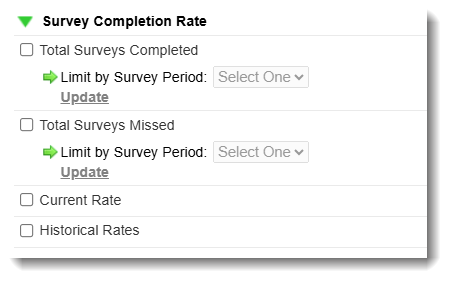 Here you can view:
- Total Surveys Complete, and
- Total Surveys Missed
Once selected, you can limit the value by surveying period, like this: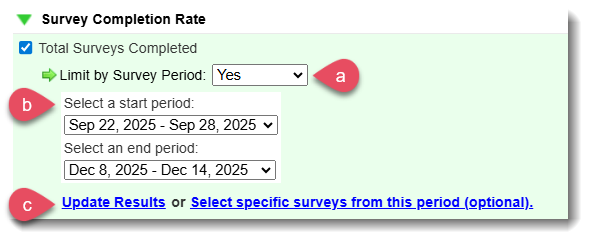 Optionally, you can choose specific surveys by using the data viewing filter by clicking Select specific repo from this period (optional).
Clicking this link will open your filter options: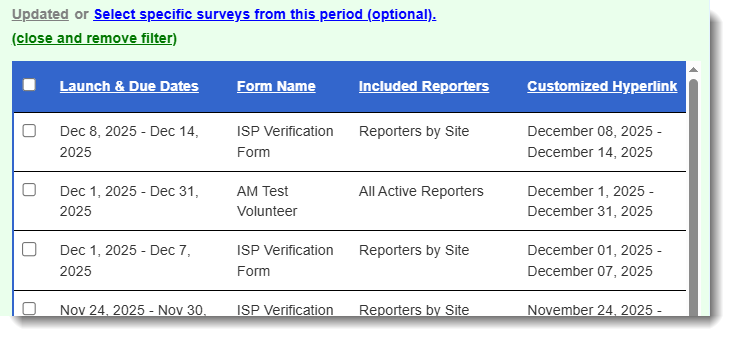
- Once you update results the table at the bottom of the page will reflect your query. Like this:

- Save and export your results here:

- You can even use the Show Filter options to determine which of your reporters submitted a minimum number of surveys for any given time period. Like this:

Was this article helpful?
That’s Great!
Thank you for your feedback
Sorry! We couldn't be helpful
Thank you for your feedback
Feedback sent
We appreciate your effort and will try to fix the article