
TABLE OF CONTENTS
- Getting to the Timesheet Custom Report Building
- Reporter Profile Data in Custom Timesheet Reports
- Video Support
Getting to the Timesheet Custom Report Building
Reporter Profile data is available in all Custom Timesheet Report types.
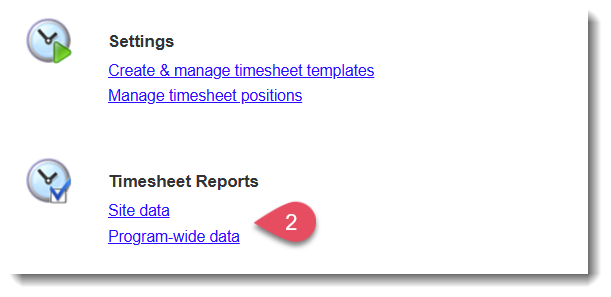
- On the left, in your Mission Control, click Timesheets.
On the right, under Timesheet Reports, select either Site data or Program-wide data.
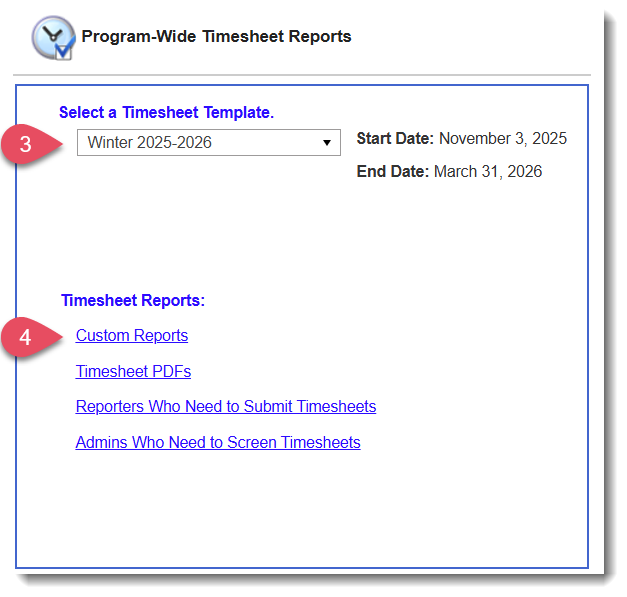
- On the next page, select the Timesheet Template at issue.
- Then select Custom Reports.
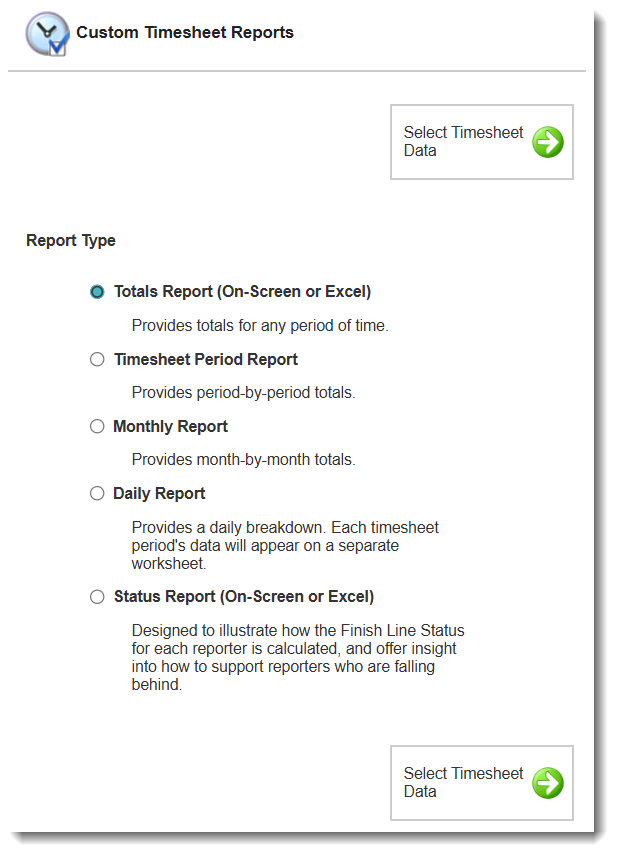
- On the next page, choose which report type you would like to build. All report types listed will give you the ability to add profile data!
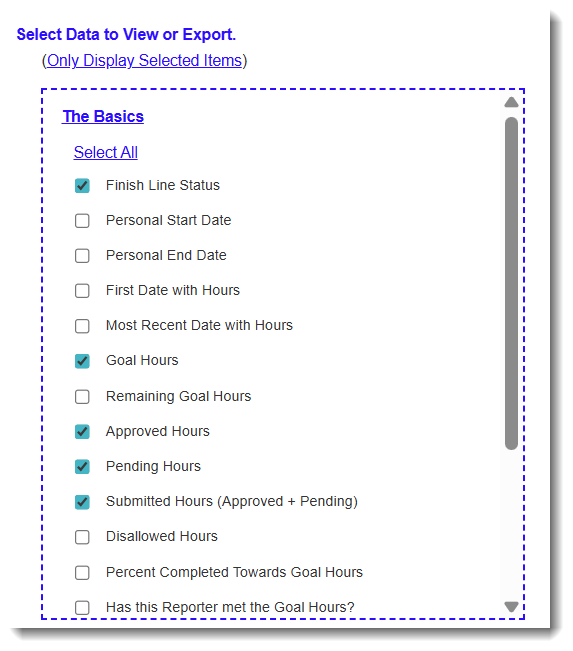
- On the next page, Select Data to Export. You can choose as many data points as you’d like.
NOTE: If you are building a Site Timesheet Report, you'll have an option to select which sites to include at the top of the page: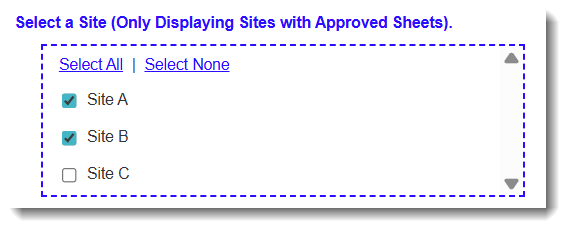
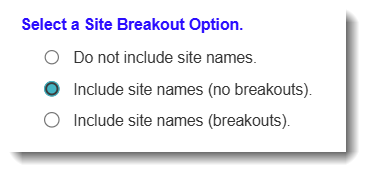
- Then, use the Select Site Breakout Options, to tell the system what site data (if any) you would like on your report:
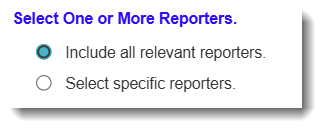
- Next, Select One or More Reporters by choosing either:
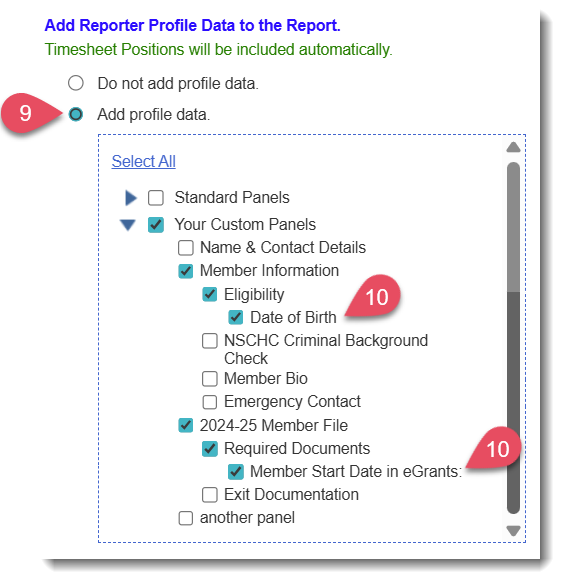
- Add Reporter Profile Data to the Report, by choosing Add profile data.
- Select the reporter profile data you would like to include. (Note: Your Timesheet Association will automatically be selected.)
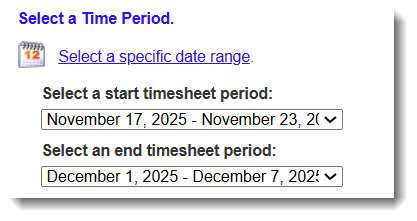
- Use the Select a Time Period section to select the time period that the report should include.
- Choose your report format by clicking View Data or Export Excel.
NOTE: View Data will only be available for the Totals Report.
Reporter Profile Data in Timesheet Custom Reports
When you elect to include reporter profile data in your timesheet reports, you can view on-screen (Totals Reports only) and/or export to Excel.
Here's an on-screen view on the Totals Report with reporter profile data included:
Here's an example of what the Excel worksheets will look like.
Video Support
Was this article helpful?
That’s Great!
Thank you for your feedback
Sorry! We couldn't be helpful
Thank you for your feedback
Feedback sent
We appreciate your effort and will try to fix the article