
Why do I need to create an extension for my survey launch?
When launching surveys in the Impact Suite, you must set both a launch date and a due date. You can also add an optional extension period. Once the due date and any extension period have passed, reporters who haven’t submitted their surveys will lose access. To reopen access for these reporters, you’ll need to update the extension period for the launch.
The steps below will guide you through updating the extension date for a closed survey launch.
TABLE OF CONTENTS
- Option 1: Create an Extension from the Completion Tracker
- Option 2: Create an Extension from the Survey Launch Settings Page
Option 1: Create an Extension from the Completion Tracker
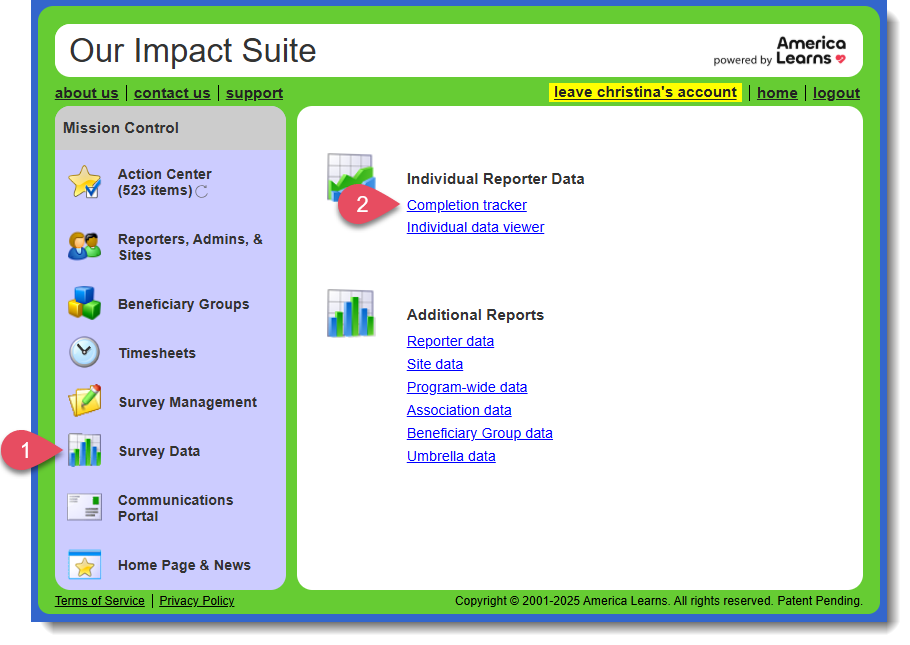
- In your Mission Control, go to Survey Data.
- Then select Completion tracker.
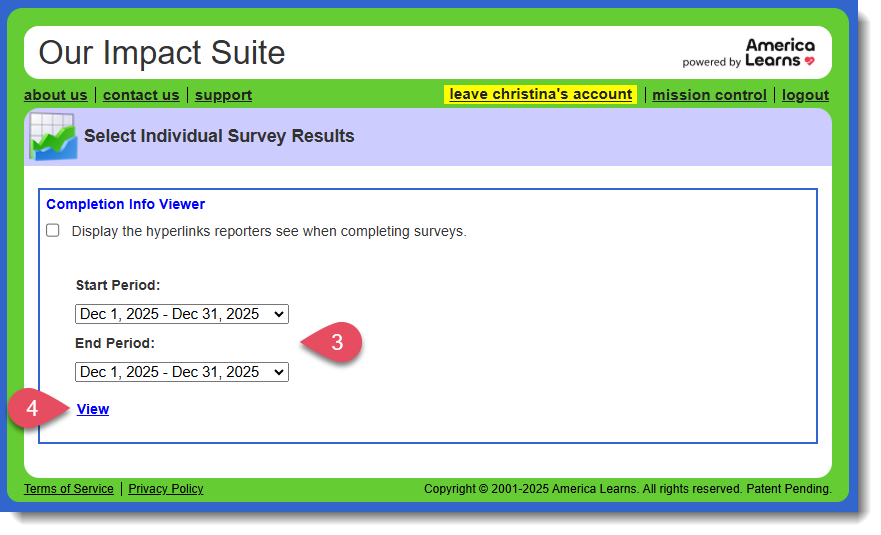
- On the next page, choose the date range for the surveys for which you’d like to view completion details.
- Select View, once you've chosen your dates.
- If the extension period has passed, but you'd like to allow more people to complete the survey, click the Extend through [Date] or Create an Extension hyperlink to go directly to the launch settings page.
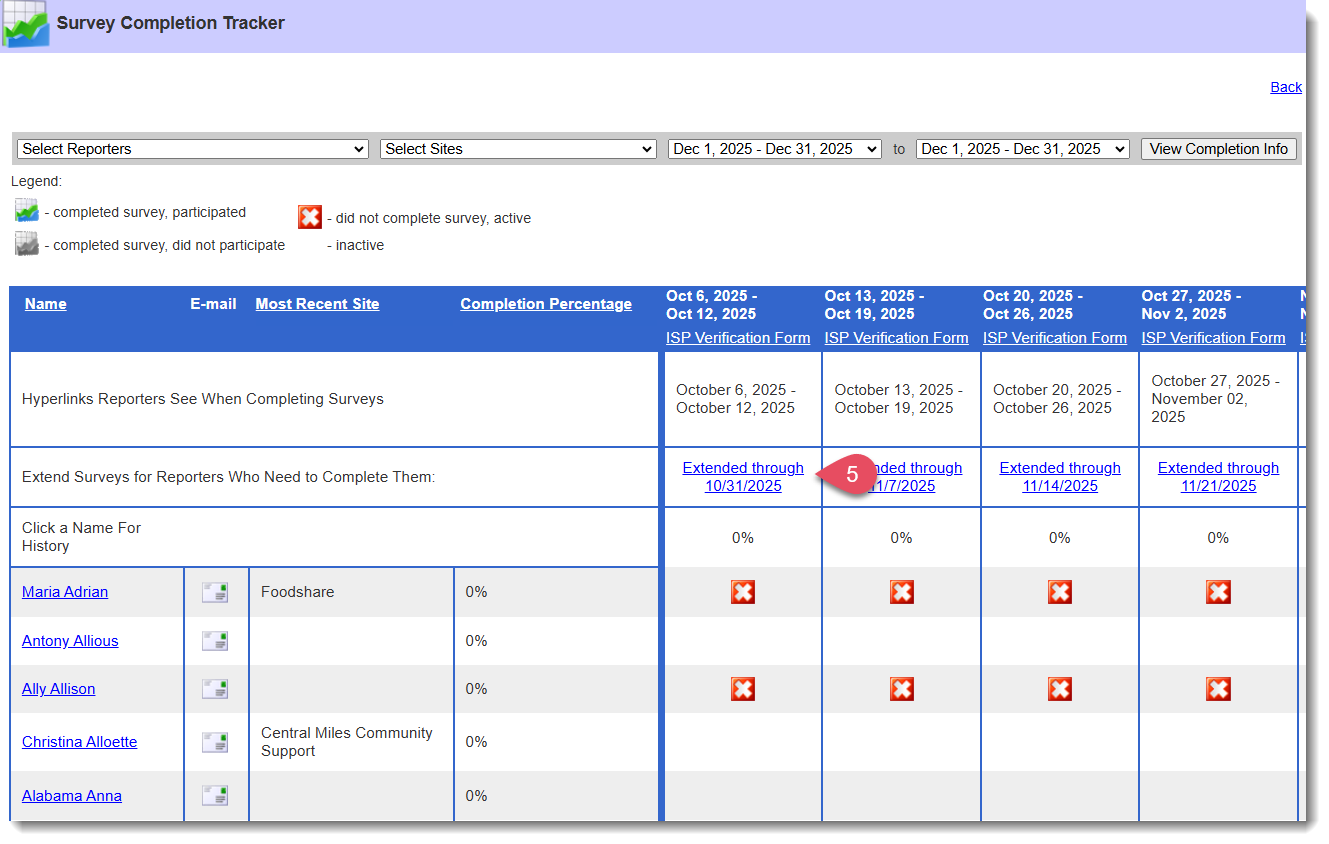
OR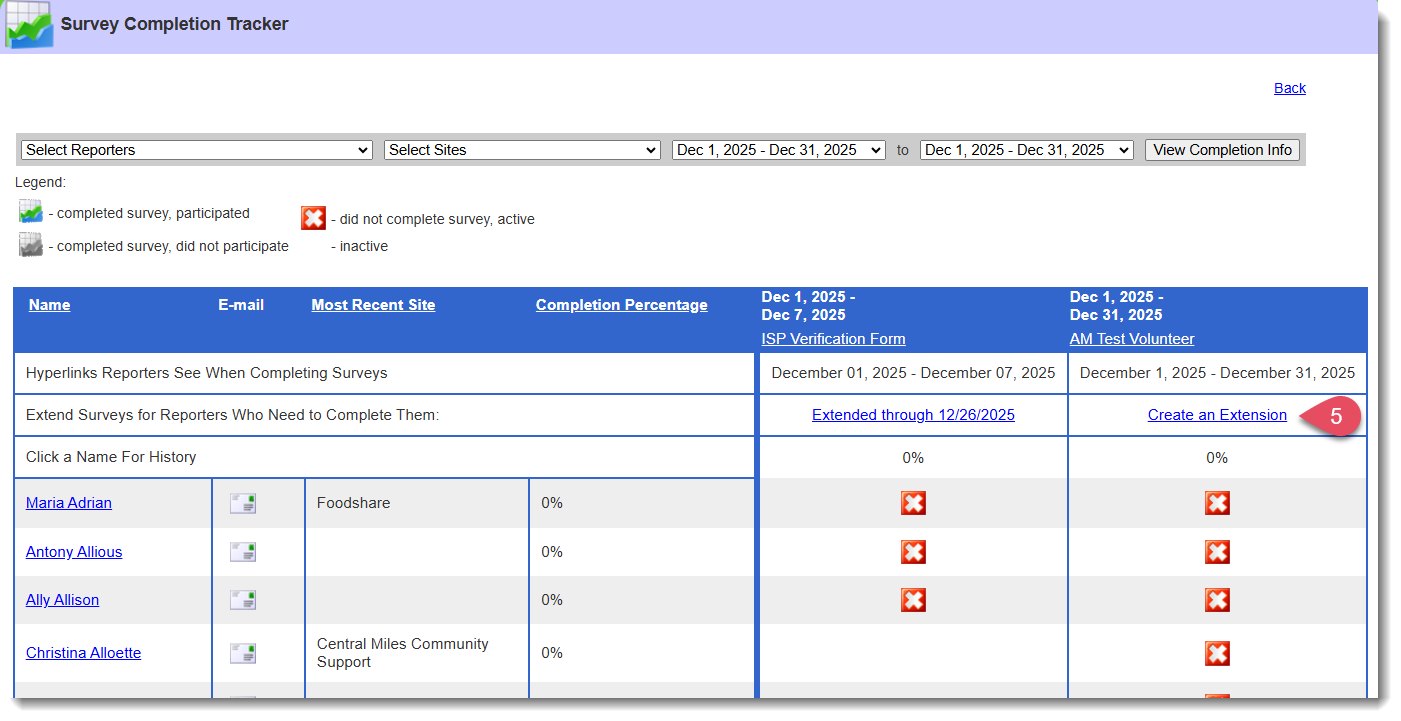
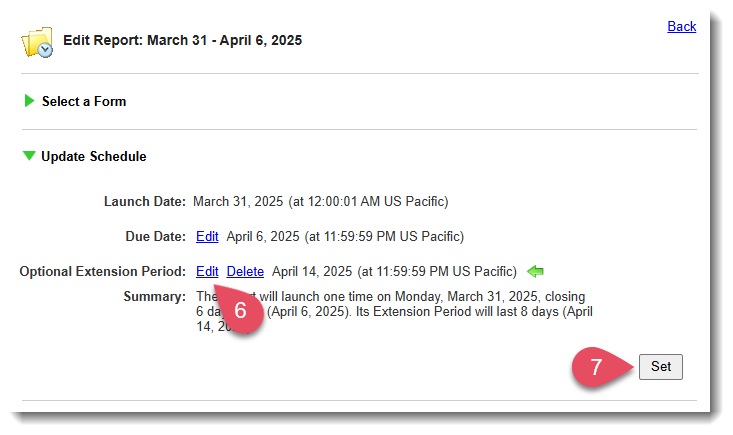
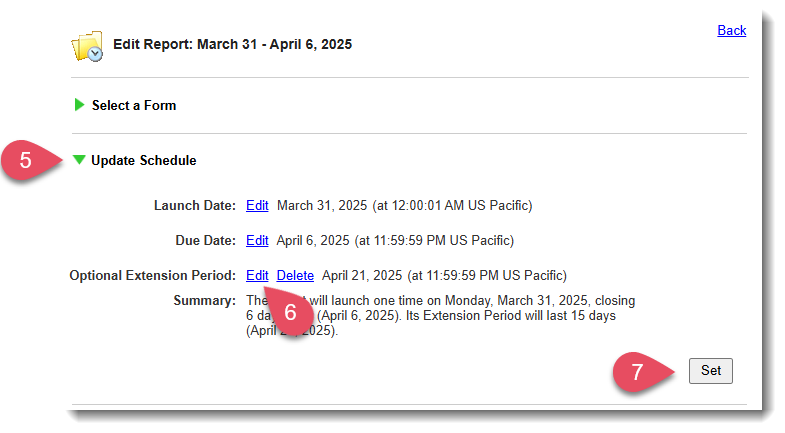
- A new tab with the launch settings page will open. Under the Update Schedule section, select Edit to update the extension period.
- Then, click Set to save your changes.
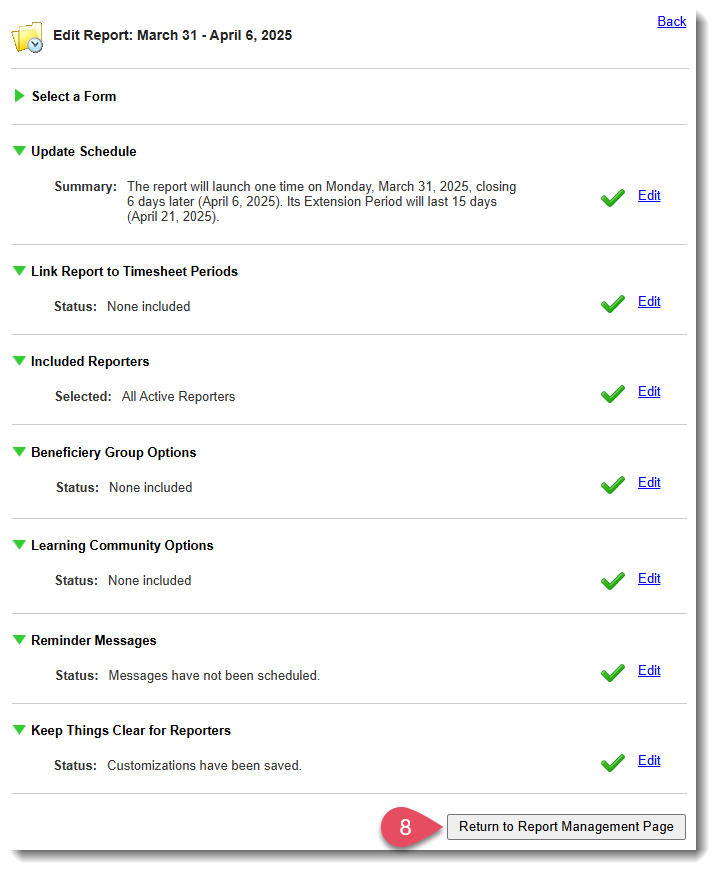
- At the bottom of the page, select Return to Survey Management Page.
Option 2: Create an Extension from the Survey Launch Settings Page
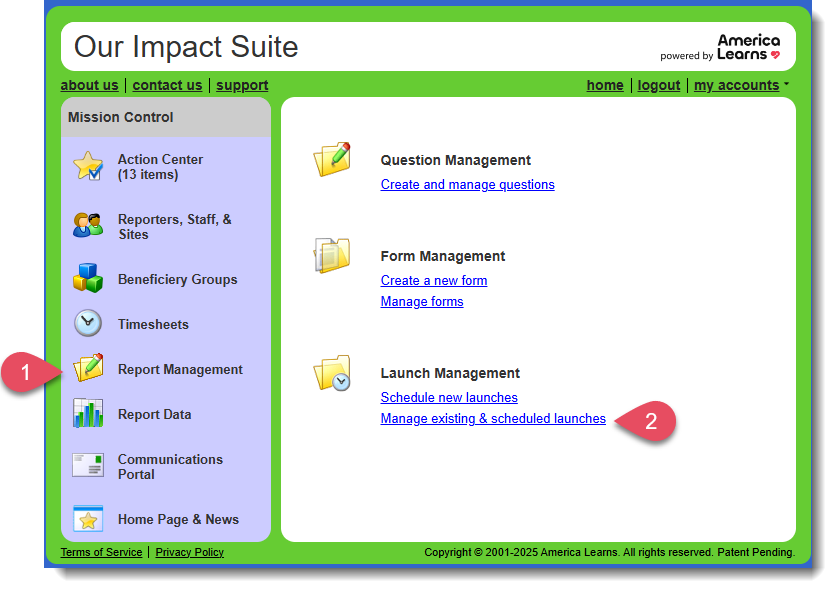
- In your Mission Control, go to Survey Management.
- Then select Manage existing & scheduled launches.
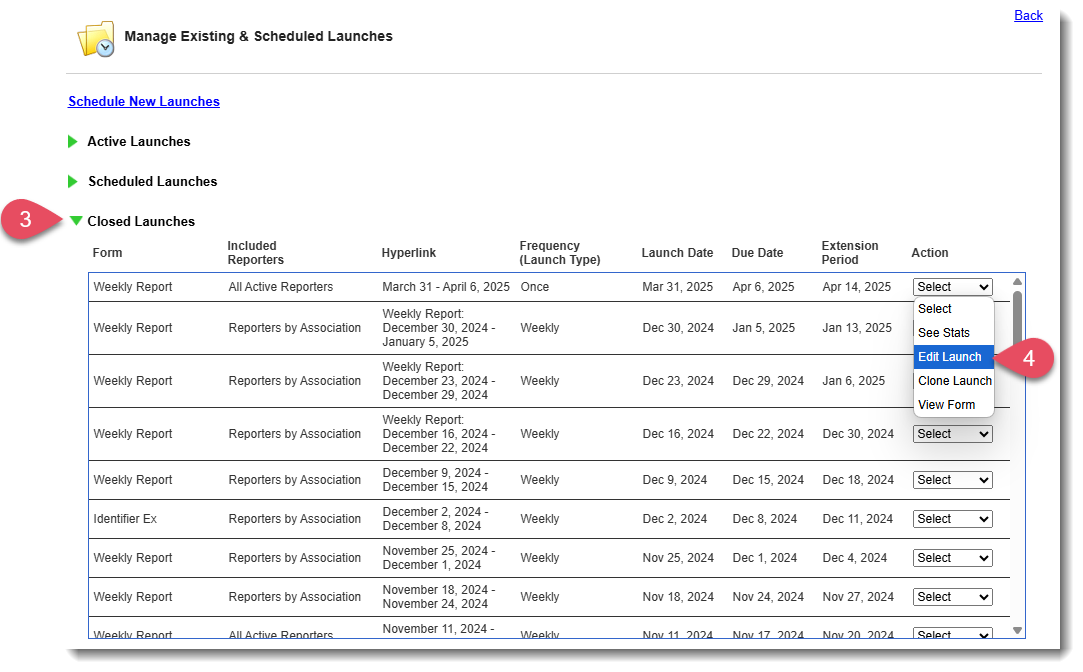
- On the launch management page, expand the Closed Launches section.
- Find the survey you want to update, then select Edit Launch from the Action column drop-down menu.
- On the launch settings page, expand the Update Schedule section.
- Select Edit to update the extension period.
- Then, click Set to save your changes.
- At the bottom of the page, select Return to Survey Management Page.
Was this article helpful?
That’s Great!
Thank you for your feedback
Sorry! We couldn't be helpful
Thank you for your feedback
Feedback sent
We appreciate your effort and will try to fix the article